
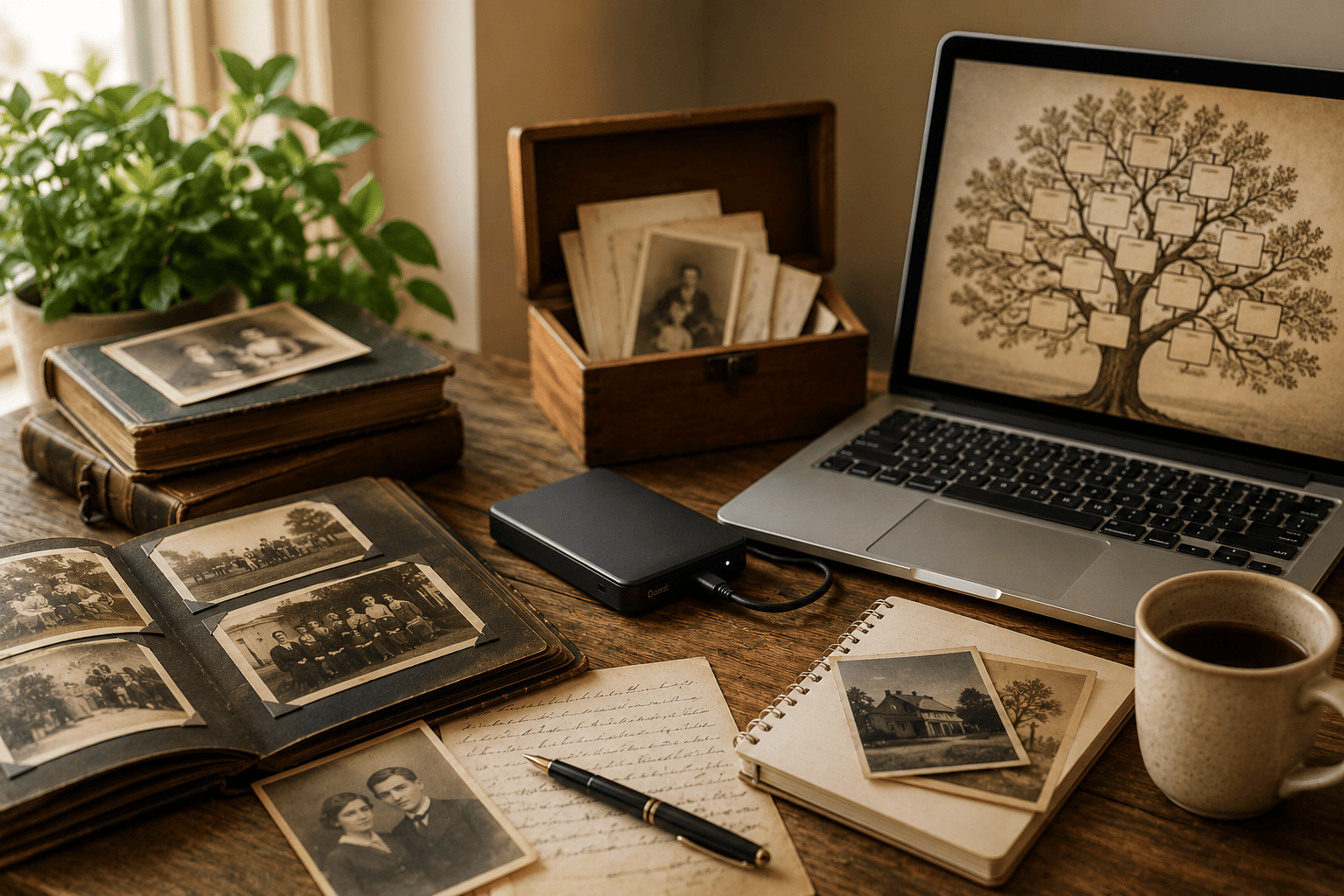
If you spend time researching your family history, your computer probably contains years of work: census records, certificates, scanned photographs, family stories, research notes, and carefully built family trees. Losing that data through a computer failure or accidental deletion can be devastating. The good news is that backing up your files does not need to be complicated. With a few simple habits and tools, you can keep your genealogy research safe and recoverable.
Why Backups Matter
Computers and phones fail eventually. Hard drives stop working, laptops get stolen, files are accidentally deleted, and malware can make documents inaccessible. Family historians are especially vulnerable because many of the things we store are unique and irreplaceable. Old family photos, scanned letters, and research notes often exist nowhere else.
A backup is simply an extra copy of your important files stored somewhere safe.
What Should You Back Up?
For genealogy researchers, the most important items usually include:
- Family tree files
- Scanned certificates and records
- Old family photographs
- Research notes and documents
- Emails relating to family history
- Videos or audio recordings of relatives
- DNA match downloads and reports
A good rule is this: if it would upset you to lose it, back it up.
The Simple 3–2–1 Rule
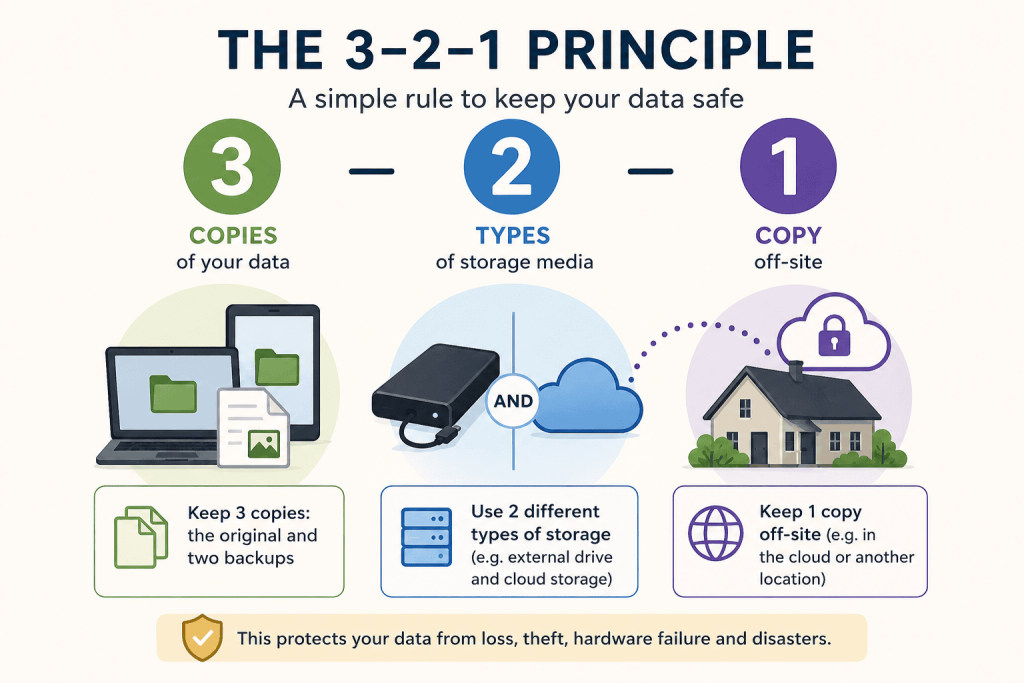
One of the best and easiest backup strategies is known as the 3–2–1 principle:
- Keep 3 copies of your data
- Store them on 2 different types of storage
- Keep 1 copy off-site
For example:
- Your main computer copy
- A copy on an external USB drive
- A copy in cloud storage such as OneDrive, iCloud, Google Drive, or Dropbox
This approach protects you not only from computer failure, but also from theft, fire, or accidental damage at home.
External Drives — The Easiest Starting Point
An external USB hard drive or SSD is one of the simplest backup solutions. They are relatively inexpensive and easy to use.
On a Mac
Apple includes Time Machine, which automatically backs up your Mac once an external drive is connected.
On Windows
Windows includes tools such as File History and Windows Backup to make regular backups automatically.
Once configured, backups can happen quietly in the background without needing much attention.
Cloud Storage and Cloud Backup
Cloud services store copies of your files online, away from your home. Popular services include:
These services are especially useful for photographs and documents because they can synchronise files across multiple devices.
However, it is important to remember that syncing is not always the same as a true backup. If you accidentally delete a file, the deletion may sync everywhere. That is why combining cloud storage with another backup method is recommended.
Don’t Forget Your Phone and Tablet
Many people now take photographs of documents and gravestones using their phone. Those images may never make it onto a computer unless backups are enabled.
iPhone and iPad
Use iCloud Backup and ensure photos are included.
Android
Use Google Backup and Google Photos or another photo backup service.
Automatic backup is usually available and requires very little setup.
Check That Your Backups Actually Work
A backup is only useful if you can restore your files when needed.
Every few months:
- Make sure your backup drive is still working
- Check that cloud syncing is active
- Try restoring a file as a test
- Verify that your latest photographs and documents are included
This simple check can prevent unpleasant surprises later.
Keep It Simple
The best backup system is the one you will actually use. There is no need for complicated technical setups.
For most people, a very good arrangement is:
- Your computer
- An external backup drive
- A cloud backup or cloud storage service
That alone provides strong protection for your family history research.
Final Thoughts
Genealogy research often represents years of work and memories that cannot easily be replaced. A simple backup routine can protect that investment and give you peace of mind.
You do not need to be highly technical. Start with one external drive and one cloud service, automate as much as possible, and check things occasionally. A little preparation today can save a great deal of heartbreak tomorrow.
One response to “Simple Backup Strategies — Protecting Your Family History Research”
[…] Simple Backup Strategies — Protecting Your Family History Research […]